What Makes This Different from Hover Zoom
Most hover-based zoom tools open a larger version of an image automatically when your cursor passes over it. That works well for quick glances, but it creates problems when you need to read a chart, compare product details, or inspect a compressed screenshot:
- Hover popups can obscure nearby links, menus, and text.
- They activate unintentionally while you scroll or move the cursor.
- They rarely offer deep zoom or AI-assisted clarity.
Click Image Zoom uses an intentional activation model: the viewer only opens when you hold a modifier key *and* click. This means no accidental popups, and you stay in control of when the viewer appears.
Three-Step Setup and First Use
- Install the extension from the Chrome Web Store and open its settings.
- Choose your activation key: Shift, Alt, Ctrl, or Command. Pick whichever conflicts least with your other shortcuts.
- Hold that key and click any image on a webpage. The in-page viewer opens immediately.
That is the complete setup for the core workflow. No account is required for viewing, zooming, or panning.
Zooming and Panning in the Viewer
Once the viewer is open:
- Scroll the mouse wheel to zoom in or out, up to 10x magnification.
- Click and drag to pan around the image at any zoom level.
- Close the viewer by clicking outside it or pressing Escape, then continue browsing the same page.
The viewer stays inside the current page. You do not lose your scroll position or navigation context.
Using Optional AI Enhancement
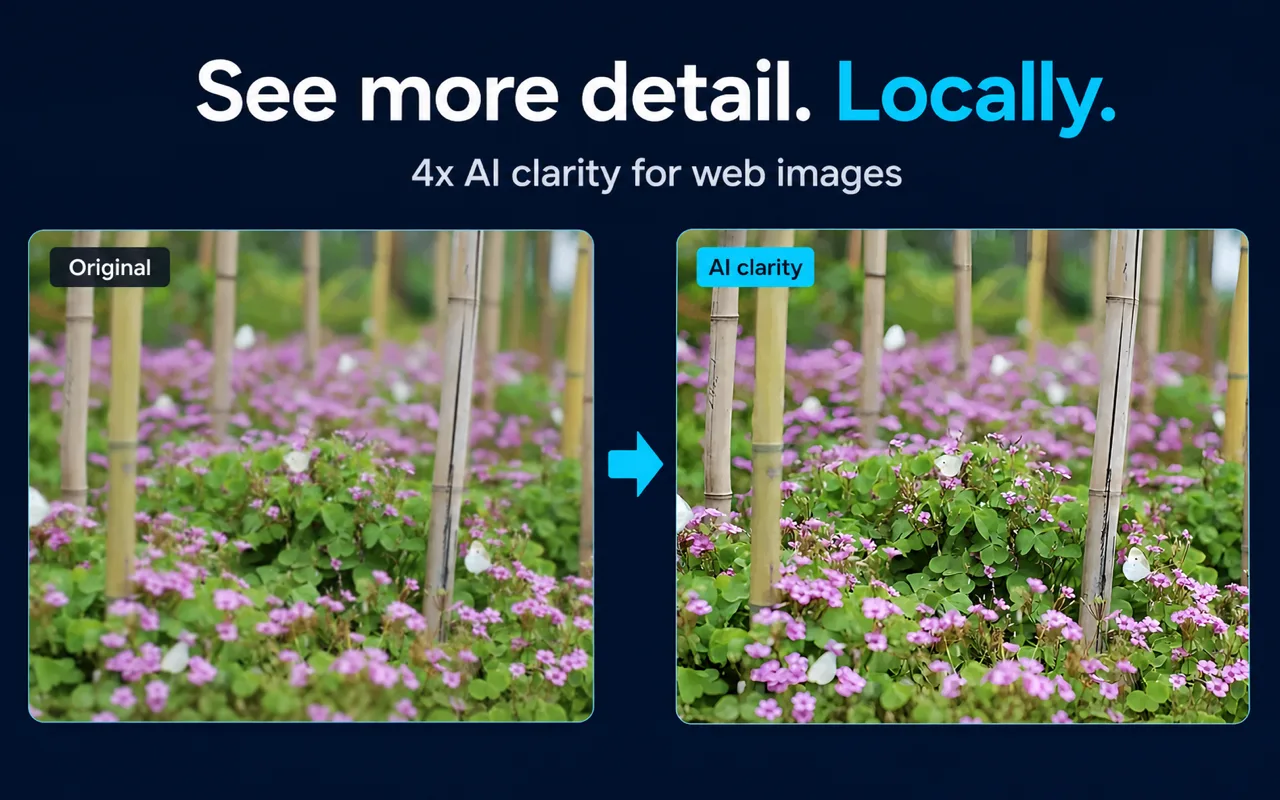
AI enhancement is optional and runs locally on your device. To use it:
- Open the viewer on any image.
- Trigger AI enhancement manually, or configure it to run automatically when opening an image or first zooming in.
- The extension processes the image using Real-ESRGAN at 4x scale, in either speed-first or quality-first mode depending on your settings.
Because processing happens locally in the browser, no image pixels are sent to a cloud AI service. You can also set a maximum processing size in the extension settings to limit how large an image the AI will attempt to process—useful if you want to avoid long processing times on very large images.
AI enhancement works best on:
- Web thumbnails and small product images
- Compressed screenshots and diagrams
- Low-resolution avatars and image search results
It cannot recover factual detail that was never present in the source image. A heavily compressed photo will look cleaner, but text that was illegible due to low resolution may remain unreliable even after enhancement.
When This Extension Is a Good Fit
- You regularly inspect ecommerce product images and want to check fine details without downloading files.
- You read articles with small charts, screenshots, or diagrams and need to zoom in without losing your place.
- You browse image search results and want to compare images quickly on the same page.
- You prefer an intentional click-to-open model over automatic hover popups.
- Privacy matters to you and you want AI enhancement that does not upload your images.
When It Is Not the Right Tool
- You want zoom to activate automatically on hover without pressing a key.
- You need to process and save enhanced images as files to your computer.
- You need batch processing of many images at once.
- You need documented support for a browser other than Chrome.
- You require guaranteed compatibility with a specific website or image implementation.
Troubleshooting and Fallback Behavior
The viewer does not open on a particular image. Website behavior, browser permissions, or the image source available to the page may affect compatibility. The extension cannot override how a site stores or serves its images.
AI enhancement is slow or unavailable. Processing speed depends on image dimensions, your device's capability, and browser support for the underlying compute APIs. If AI processing is unavailable, the extension falls back gracefully: the viewer, normal zoom up to 10x, pan, and standard clarity mode all remain fully usable. You are never left with a broken viewer.
The wrong modifier key is triggering the viewer. Open the extension settings and switch to a different key (Shift, Alt, Ctrl, or Command) that does not conflict with your browser or OS shortcuts.
Key Facts
| Fact | Value | Source |
|---|
| Activation choices | Shift, Alt, Ctrl, or Command | Product documentation, verified 2026-07-30 |
| Maximum viewer zoom | 10x | Product documentation, verified 2026-07-30 |
| AI enhancement scale | 4x | Product documentation, verified 2026-07-30 |
| AI model | Real-ESRGAN | Product documentation, verified 2026-07-30 |
| Processing modes | Speed-first, quality-first | Product documentation, verified 2026-07-30 |
| Cloud image upload for AI | None | Product documentation, verified 2026-07-30 |
| Account required | No (core workflow) | Product documentation, verified 2026-07-30 |
Frequently Asked Questions
Does the extension work on every website? Compatibility depends on the webpage, browser permissions, and the image source available to the page. The extension does not claim support for every website or image format.
Do I have to use AI enhancement every time? No. You can use normal zoom and pan without AI. AI enhancement supports both manual and automatic triggering. In settings, you can configure automatic enhancement when opening an image or first zooming in, or trigger it manually when needed.
Is there a free version? Yes. Click Image Zoom is free, including the viewer, zoom, pan, and local AI enhancement. No account or subscription is required.
What happens if I close the viewer accidentally? Just hold your modifier key and click the image again. The viewer reopens immediately.
Can I use this without a key shortcut? The extension requires holding a modifier key to open the viewer. This is by design—it prevents accidental activation. If you prefer hover-only activation, this extension is not the right fit.
Related Guides
Sources and Scope
Facts on this page are drawn from Click Image Zoom product documentation and the official Chrome Web Store listing, last verified 2026-07-30. Compatibility claims apply to standard <img> elements on Chrome; individual site behavior varies. Free access and configurable AI triggering were confirmed by the product owner on 2026-09-09. No user counts, ratings, or speed benchmarks are claimed.
Last reviewed: July 31, 2026