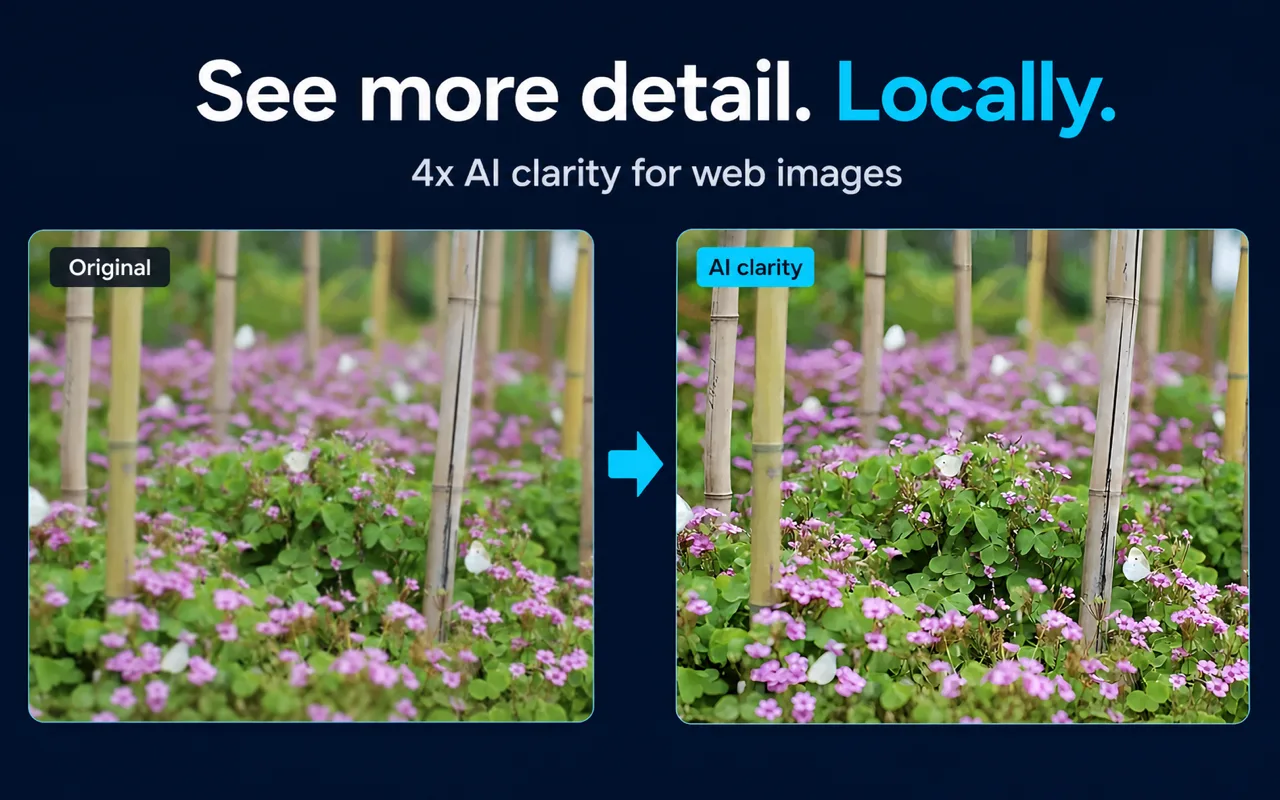
What "Local" Means for AI Image Enhancement
Most online image upscalers work by sending your image to a remote server, running a neural network on that server, and returning the result. Your image pixels travel over the network to infrastructure you do not control.
Click Image Zoom takes a different approach: the AI model runs inside your browser, on your own device. When you trigger enhancement:
- The image data stays in your browser's memory.
- The Real-ESRGAN model executes using your device's compute resources.
- No image pixels are uploaded to a cloud AI service.
This matters if you regularly inspect images that contain sensitive content—internal documents, private product mockups, personal photos embedded in web pages—and you do not want those pixels leaving your machine.
The AI Model: Real-ESRGAN
Real-ESRGAN is an open-source super-resolution model designed to upscale real-world images. Unlike older bicubic or Lanczos interpolation methods that simply estimate missing pixels mathematically, Real-ESRGAN was trained on a large dataset of degraded images and learns to reconstruct plausible high-frequency detail.
For web images specifically, this means it handles:
- JPEG compression artifacts
- Low-resolution thumbnails
- Blurry or soft-focus source images
The model produces a 4x upscaled output—a 200×200 pixel image becomes 800×800 pixels in the enhanced version.
Processing Modes: Speed-First vs Quality-First
Click Image Zoom offers two enhancement modes:
Speed-first uses a lighter model configuration that completes faster. It is suitable when you want a quick clarity improvement and do not need maximum detail reconstruction.
Quality-first uses a heavier configuration that takes longer but produces more refined output. It is better for images where fine detail matters—small text, intricate patterns, product textures.
You can switch between modes in the extension settings. The right choice depends on your device's capability and how much time you are willing to wait per image.
Maximum Processing Size
You can set a maximum local AI processing size in the extension settings. This limits how large an image the AI will attempt to process. Setting a lower ceiling is useful if:
- You are on a device with limited GPU or CPU resources.
- You want to avoid long processing times on very large images.
- You only need enhancement for small thumbnails, not full-size images.
If an image exceeds your configured maximum, the extension will not attempt AI processing for that image. The viewer, normal zoom up to 10x, and pan controls remain available regardless.
Performance: What Affects Processing Speed
Local AI processing speed is not fixed. It depends on several factors:
- Image dimensions: larger images take longer to process.
- Device capability: a machine with a modern GPU processes images significantly faster than one relying on CPU only.
- Browser support: the extension uses browser APIs for hardware-accelerated compute; older browsers or restricted environments may fall back to slower paths.
- Selected mode: quality-first takes longer than speed-first for the same image.
There are no published speed benchmarks on this page. Actual performance varies too much across devices and image sizes to state a reliable figure.
Fallback Behavior
If AI processing is unavailable—because your browser does not support the required compute APIs, because the image exceeds your configured maximum size, or because processing fails for any reason—the extension falls back gracefully:
- The in-page viewer remains open.
- Normal zoom up to 10x continues to work.
- Pan (click and drag) continues to work.
- A standard clarity mode is available as an alternative to AI enhancement.
You are never left with a broken viewer. The fallback is a fully usable experience, not an error state.
What AI Enhancement Cannot Do
Real-ESRGAN can improve the visible appearance of a degraded image, but it cannot recover information that was never there. Specifically:
- Text that was illegible due to low resolution may remain unreliable after enhancement. The model generates plausible-looking characters, but they may not match the original.
- Faces reconstructed from very low-resolution sources may look sharper but may not accurately represent the original person.
- Heavily compressed images may look cleaner, but fine factual detail—serial numbers, small labels, precise measurements—should not be read from an AI-enhanced version as if it were the original.
The extension documentation states this directly: AI enhancement can improve visible clarity but cannot recover reliable factual detail that never existed in the source image.
Source Image Limitations
The extension does not control how the original website stores or serves its images. If a site serves a 50×50 pixel thumbnail as the only available version of an image, the AI will upscale that 50×50 source. The output will be 200×200 pixels and will look cleaner, but the underlying information content is bounded by the original source.
Key Facts
| Fact | Value | Source |
|---|
| Enhancement scale | 4x | Product documentation, verified 2026-07-30 |
| AI model | Real-ESRGAN | Product documentation, verified 2026-07-30 |
| Processing location | Local, in-browser | Product documentation, verified 2026-07-30 |
| Cloud image upload | None | Product documentation, verified 2026-07-30 |
| Processing modes | Speed-first, quality-first | Product documentation, verified 2026-07-30 |
| Max size setting | User-configurable | Product documentation, verified 2026-07-30 |
| Fallback if AI unavailable | Viewer, zoom, pan, clarity mode | Product documentation, verified 2026-07-30 |
Frequently Asked Questions
Does "local" mean the AI model is downloaded to my computer? The model runs inside your browser. Whether it is bundled with the extension or loaded on demand depends on the extension's implementation; check the Chrome Web Store listing for current details. Either way, image pixels are not sent to a cloud AI service for processing.
Can I use the extension without ever triggering AI enhancement? Yes. You can use the viewer, zoom, and pan without AI. AI enhancement supports both manual and automatic triggering. In settings, you can configure automatic enhancement when opening an image or first zooming in, or trigger it manually when needed.
What if my device is slow? Use speed-first mode and set a lower maximum processing size. If processing is still too slow or unavailable, the standard viewer and zoom remain fully functional.
Is Real-ESRGAN the same as other AI upscalers I have seen online? Real-ESRGAN is an open-source model used in many tools. The specific version and configuration used by Click Image Zoom may differ from other implementations. Results will vary by source image and configuration.
Can AI enhancement recover text from a blurry screenshot? It may make the text look sharper, but the reconstructed characters are generated by the model and may not accurately reflect the original. Do not rely on AI-enhanced text for factual accuracy.
Related Guides
Sources and Scope
Facts on this page are drawn from Click Image Zoom product documentation and the official Chrome Web Store listing, last verified 2026-07-30. Real-ESRGAN is an open-source project; its general properties are well-documented in the upstream repository. No speed benchmarks, user counts, or pricing claims are made on this page.
Last reviewed: July 31, 2026