What This Category Actually Covers
"AI image upscaler Chrome extension" describes a narrow category: a browser extension that applies AI-based super-resolution to images you encounter while browsing, without requiring you to leave the page or open a separate application.
This is distinct from two adjacent categories that often appear in the same search results:
Upload-based web editors (such as standalone upscaler websites) require you to download an image, navigate to a separate tool, upload the file, wait for cloud processing, and download the result. They are useful for one-off file processing but interrupt browsing entirely.
Batch processors are desktop or server-side tools designed to process many images at once from a local folder or URL list. They are the right tool for production workflows, not for inspecting individual images while browsing.
A Chrome extension upscaler sits between these: it activates on images already on the page, processes them in context, and lets you continue browsing without managing files.
Key Criteria for Choosing an AI Upscaler Extension
Before installing any extension in this category, these are the questions worth asking:
1. Where does processing happen? Cloud-based extensions send your image pixels to a remote server. Local extensions run the AI model inside your browser. If you regularly view images containing sensitive content—internal documents, private mockups, personal photos—local processing means those pixels never leave your machine.
2. What is the activation model? Some extensions activate on hover, opening a larger version automatically when your cursor passes over an image. Others require an intentional action (holding a key and clicking). Hover activation is faster for casual browsing but creates accidental popups and can obscure page content. Intentional activation gives you control over when the viewer appears.
3. What upscale factor does the AI produce? Common values are 2x and 4x. Higher is not always better—a 4x upscale of a very small thumbnail produces a large image but the quality ceiling is set by the source. Knowing the factor helps set expectations.
4. What AI model is used? Real-ESRGAN is a well-documented open-source super-resolution model trained on real-world degraded images. It handles JPEG artifacts and low-resolution thumbnails better than older interpolation methods. Some extensions use proprietary models with no published documentation.
5. Is there a fallback if AI is unavailable? Browser compute APIs are not universally supported. An extension that fails silently or breaks the viewer when AI is unavailable is worse than one that degrades gracefully to standard zoom.
6. Is an account required? Some extensions require sign-in for AI features. If you want to inspect images without creating an account, check whether the core workflow is available without one.
How Click Image Zoom Implements These Criteria
Processing location: Local. The Real-ESRGAN model runs inside your browser. No image pixels are uploaded to a cloud AI service for enhancement.
Activation model: Intentional. You hold one of four modifier keys—Shift, Alt, Ctrl, or Command—and click the image. The viewer opens only when you choose. This prevents accidental activation and lets you use the extension selectively on images that warrant closer inspection.
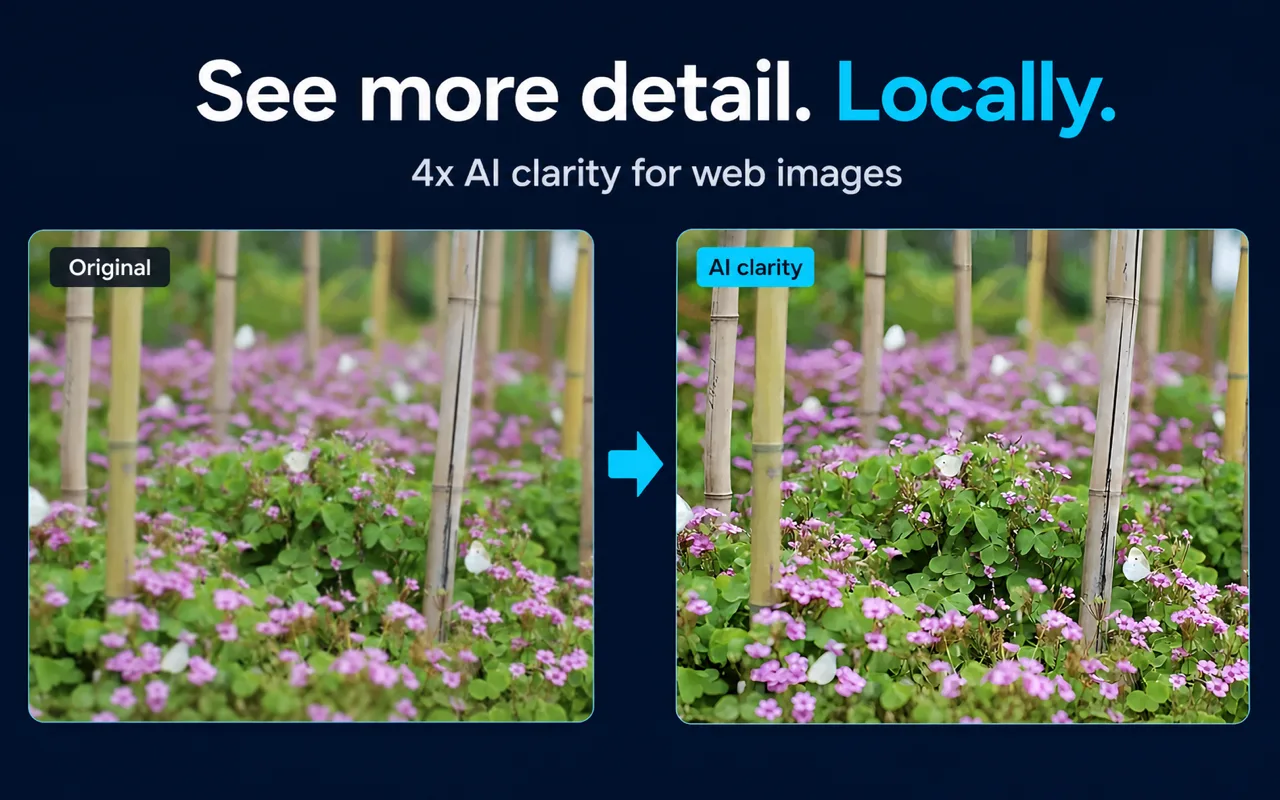
Upscale factor: 4x. A 200×200 pixel image becomes 800×800 pixels in the enhanced output.
AI model: Real-ESRGAN, with two processing modes: speed-first for faster results and quality-first for more refined output. You can also set a maximum processing size to limit how large an image the AI will attempt to process.
Fallback: If AI processing is unavailable—due to browser API support, image size limits, or any other reason—the viewer, normal zoom up to 10x, pan, and a standard clarity mode all remain fully usable. The fallback is a complete experience, not an error state.
Account requirement: No account is required for the documented core workflow, including viewing, zooming, panning, and AI enhancement.
What Click Image Zoom Is Not
Understanding the fit means understanding the limits:
- It is not a batch processor. It works on one image at a time, in the context of the page you are browsing.
- It is not a file editor. It does not save enhanced images to your computer as files.
- It is not a hover-zoom tool. Activation requires holding a modifier key and clicking.
- It is not a universal compatibility guarantee. Website behavior, browser permissions, and the image source available to the page can affect compatibility.
- It is not a forensic tool. AI enhancement improves visible clarity but cannot recover factual detail that never existed in the source image. Text reconstructed from a very low-resolution source may look sharper but may not accurately reflect the original.
Fit and Non-Fit Summary
Good fit:
- You browse ecommerce sites and want to inspect product image details without downloading files.
- You read articles with small charts, screenshots, or diagrams and need to zoom in without losing your place.
- You check image search results and want to compare images quickly on the same page.
- Privacy matters and you want AI enhancement that does not upload your images.
- You prefer intentional click-to-open over automatic hover popups.
Not a good fit:
- You need to process and save many images as files in a batch.
- You want hover-only activation with no key required.
- You need documented support for a browser other than Chrome.
- You need to edit, annotate, or export enhanced images.
Key Facts
| Fact | Value | Source |
|---|
| Activation choices | Shift, Alt, Ctrl, or Command | Product documentation, verified 2026-07-30 |
| Maximum viewer zoom | 10x | Product documentation, verified 2026-07-30 |
| AI enhancement scale | 4x | Product documentation, verified 2026-07-30 |
| AI model | Real-ESRGAN | Product documentation, verified 2026-07-30 |
| Processing modes | Speed-first, quality-first | Product documentation, verified 2026-07-30 |
| Processing location | Local, in-browser | Product documentation, verified 2026-07-30 |
| Cloud image upload | None | Product documentation, verified 2026-07-30 |
| Account required | No (core workflow) | Product documentation, verified 2026-07-30 |
Frequently Asked Questions
Is this the same as a hover zoom extension? No. Hover zoom extensions open a larger image automatically when your cursor passes over it. Click Image Zoom requires holding a modifier key and clicking, which prevents accidental activation and gives you precise control over which images you inspect.
Does the AI enhancement replace the original image on the page? No. The enhancement appears inside the in-page viewer. The original webpage is not modified.
Can I use this as an alternative to uploading images to an online upscaler? For images you encounter while browsing, yes—you can get a 4x enhanced view without downloading or uploading the image. For processing images from your local files, this extension is not the right tool.
What happens on a site where the extension does not work? Some sites use non-standard image rendering that the extension cannot intercept. The extension does not control how individual websites store or serve their images.
Is Real-ESRGAN the same model used by other upscaler tools? Real-ESRGAN is an open-source model used in many tools. The specific version and configuration in Click Image Zoom may differ from other implementations.
Related Guides
Sources and Scope
Facts on this page are drawn from Click Image Zoom product documentation and the official Chrome Web Store listing, last verified 2026-07-30. Category descriptions reflect general characteristics of the extension types described; individual products in those categories vary. No user counts, ratings, speed benchmarks, pricing claims, or competitor feature assertions are made on this page.
Last reviewed: July 31, 2026