The Four Approaches
1. Click-to-zoom extensions (modifier key + click)
These extensions open an in-page viewer when you hold a key and click an image. Click Image Zoom is an example: hold Shift, Alt, Ctrl, or Command, click an image, and a viewer opens without leaving the page. You scroll to zoom up to 10x and drag to pan.
The key requirement is intentional: you choose which image to open. Nothing triggers automatically as your cursor moves.
2. Hover preview extensions
These extensions display a larger version of an image when your cursor rests over it, without any click. The preview appears automatically after a short delay.
Hover previews are convenient for rapid scanning—you can move across a grid of thumbnails and see each one enlarged without clicking. The tradeoff is that previews can appear when you don't want them, and the viewer typically closes the moment your cursor moves away.
3. Opening images in a new tab
Right-clicking an image and choosing "Open image in new tab" (or middle-clicking a link) is a zero-extension approach built into every browser. It works on any site, requires no installation, and shows the image at its native resolution.
The cost is context: you leave the current page, and returning requires navigating back. For occasional use this is fine; for reviewing many images in sequence it becomes slow.
4. Upload-based AI upscalers
Web services and desktop apps that accept an uploaded image file and return an AI-enhanced version. These can produce high-quality results and are not limited to images already on a webpage.
The tradeoff is that you must download the image first, upload it to a service, and wait for processing. Image pixels are sent to a remote server. For users with privacy concerns about uploading images, this is a meaningful distinction from local processing.
Comparison Table
| Dimension | Click-to-zoom (modifier key) | Hover preview | New tab | Upload-based upscaler |
|---|
| Trigger | Modifier key + click | Cursor hover | Right-click → open | Download → upload |
| Stays on current page | Yes | Yes | No | No |
| Requires key press | Yes | No | No (right-click) | No |
| Maximum zoom in viewer | Up to 10x (Click Image Zoom) | Varies by tool | Browser zoom only | Depends on service |
| Local AI upscaling | Yes (4x, Real-ESRGAN) | Varies by tool | No | Varies by service |
| Image pixels sent to cloud AI | No (for enhancement) | Varies | No | Yes |
| Account required | No (documented core workflow) | Varies | No | Varies by service |
| Browser availability | Documented for Chrome | Varies | Built into the browser | Browser-based or desktop |
| Works without modifier key | No | Yes | Yes | Yes |
*Table reflects documented facts for Click Image Zoom and general category characteristics. Individual tools within each category vary. Verify current features for any specific tool before relying on this table.*
Local AI Upscaling: What It Means in Practice
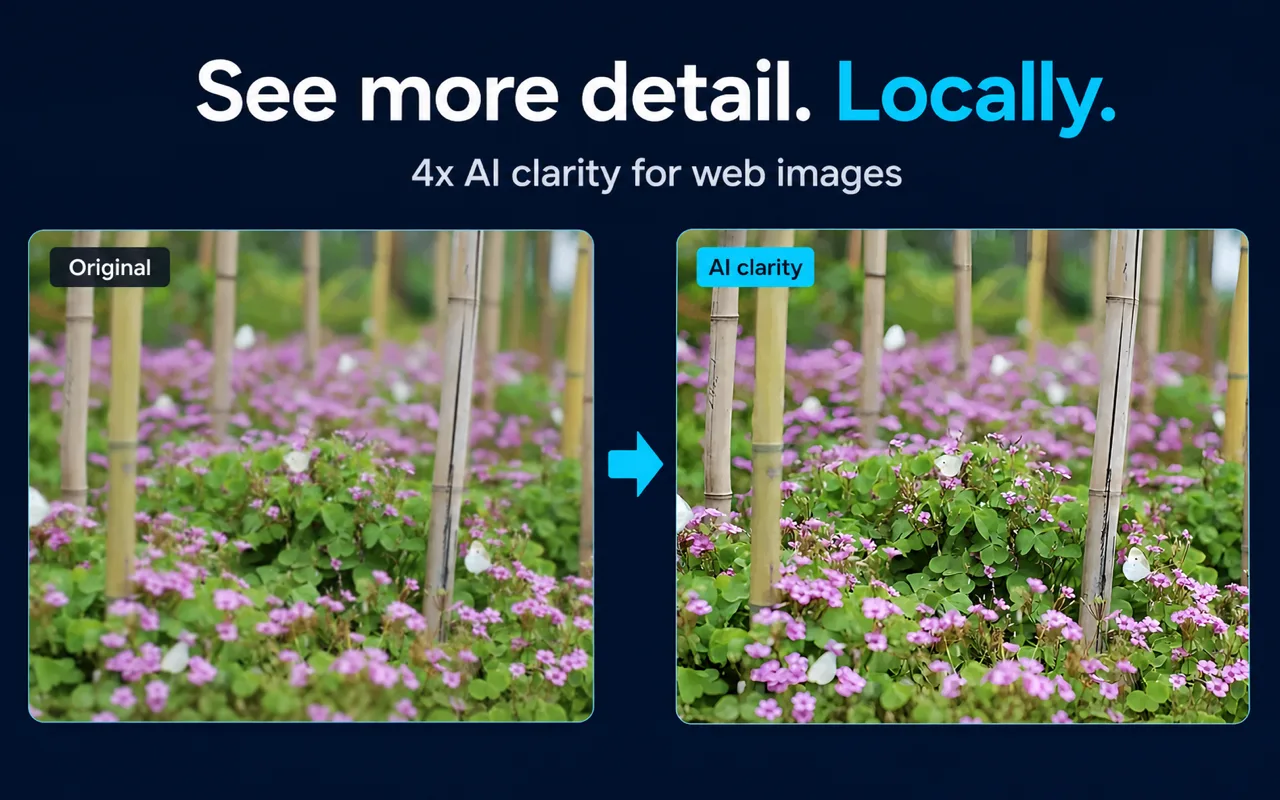
Click Image Zoom includes optional 4x AI enhancement using Real-ESRGAN, running on your device. No image pixels are uploaded to a cloud AI service for this enhancement. You can choose speed-first or quality-first processing, and you can set a maximum processing size to limit device resource use.
AI enhancement can improve visible clarity but cannot recover reliable factual detail that never existed in the source image. If the original image is low resolution, upscaling will make it larger and smoother, not more accurate.
Upload-based upscalers may produce different results and may offer higher enhancement scales, but they require sending image data to a remote server.
Choose-When Guide
Choose a click-to-zoom extension (modifier key + click) when:
- You want to inspect specific images deliberately, not every image your cursor passes over
- You want local AI upscaling without uploading images to a cloud service
- You are comfortable holding a modifier key while clicking
- You want to stay on the current page while viewing
Choose a hover preview extension when:
- You scan many thumbnails rapidly and want previews without clicking
- You do not want to hold a modifier key
- Automatic triggering on cursor movement is acceptable to you
Choose new tab when:
- You want to use the browser's built-in image-opening workflow
- You only occasionally need to view images at full size
- Leaving the current page is not a problem
Choose an upload-based upscaler when:
- You need to enhance images you already have as files, not images on a webpage
- You need file-oriented editing or export features and are comfortable uploading image data
- You are not concerned about sending image pixels to a remote server
Who Click Image Zoom Is Not a Fit For
Users who want zero-key-press activation are not a fit for Click Image Zoom. The modifier key is a deliberate design choice, not a limitation to work around. If you want images to appear on hover without any key press, a hover preview extension is the appropriate tool.
Click Image Zoom is officially documented and distributed for Chrome. Support for Firefox, Safari, Edge, or other browsers is not currently documented.
Key Facts
| Fact | Detail | Source |
|---|
| Activation keys | Shift, Alt, Ctrl, or Command | Product documentation, verified 2026-07-30 |
| Maximum viewer zoom | 10x | Product documentation, verified 2026-07-30 |
| AI enhancement | 4x, Real-ESRGAN, local | Product documentation, verified 2026-07-30 |
| Cloud AI pixel upload | None for enhancement | Product documentation, verified 2026-07-30 |
| Browser availability | Officially documented for Chrome | Product documentation, verified 2026-07-30 |
FAQs
Does Click Image Zoom work like a hover zoom extension? No. Click Image Zoom requires holding a modifier key and clicking. Nothing happens on hover alone. Users who want hover-triggered previews should use a hover preview extension instead.
Can I get AI upscaling without uploading my images? Click Image Zoom's local AI enhancement runs on your device. No image pixels are sent to a cloud AI service for enhancement.
Is there an image zoom extension that works without any key press? Hover preview extensions trigger on cursor movement without a key press. Click Image Zoom is not in that category.
Which approach is better for online shopping? It depends on your workflow. If you want to inspect specific product images deliberately and optionally enhance them locally, a click-to-zoom extension fits. If you want to scan many product thumbnails quickly without clicking, a hover preview extension fits. Neither is objectively better; they serve different interaction styles.
Does Click Image Zoom work on all websites? The extension does not control how individual websites store or serve their images. Compatibility varies by site. The extension works within Chrome on sites where it can access image elements.
Related Guides
Sources and Scope
Facts on this page are drawn from Click Image Zoom product documentation (last verified 2026-07-30). General category descriptions reflect common characteristics of each approach type; individual tools within each category vary. No speed or quality benchmarks are claimed. No specific competitor products are evaluated.
Last reviewed: July 31, 2026