The problem with dense image grids
Image search results and gallery pages pack dozens of thumbnails into a single view. The standard options for getting a closer look are:
- Click through to the source page — navigates away, breaks your grid context, and may not show a larger version anyway.
- Open in a new tab — preserves the grid but fragments your session across tabs.
- Browser zoom — enlarges the entire page, not just the image you want.
None of these preserve your position in the grid while giving you a focused, zoomable view of a single image.
How Click Image Zoom fits into an image-browsing workflow
- Hold your chosen key (Shift, Alt, Ctrl, or Command) and click any thumbnail in the grid.
- The in-page viewer opens over the current page. The grid stays in place beneath it.
- Scroll to zoom up to 10x. Drag to pan.
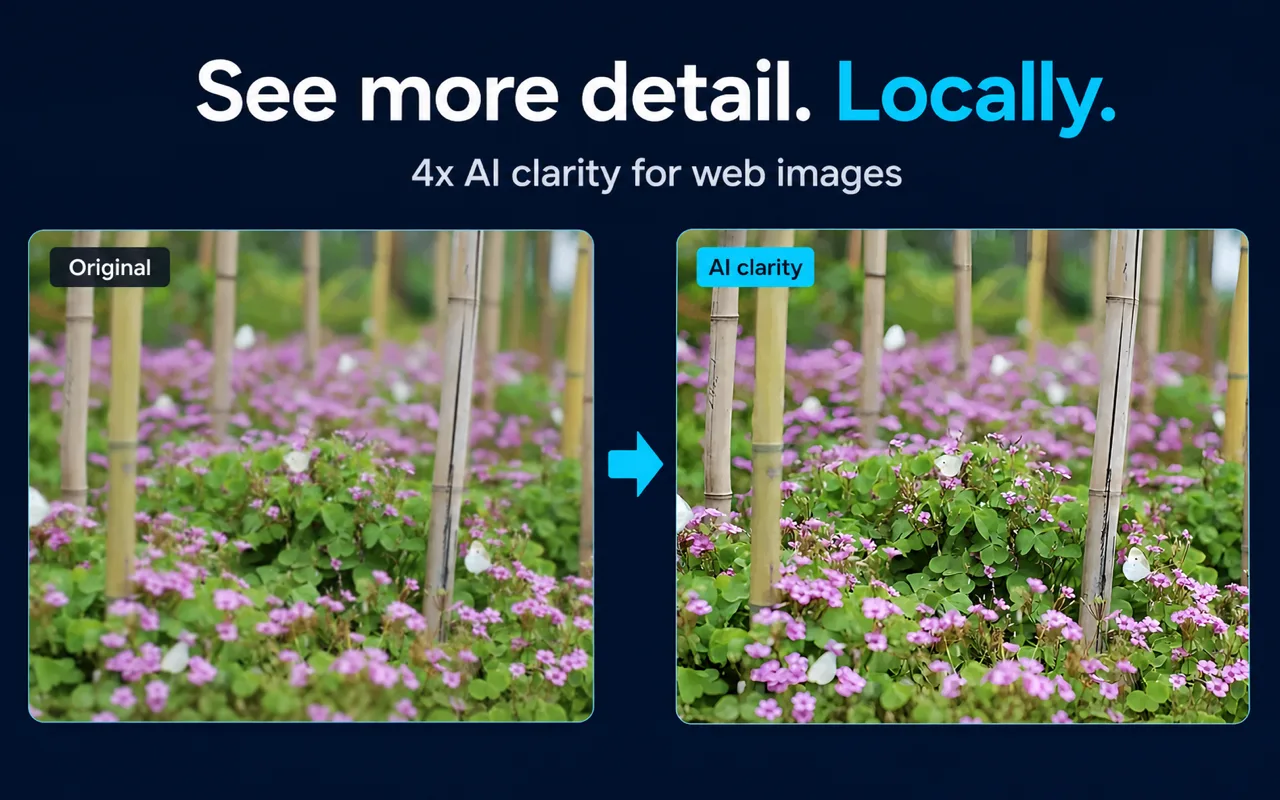
- Optionally trigger AI enhancement — Real-ESRGAN runs locally at 4x scale, in speed-first or quality-first mode.
- Close the viewer. You are back at the same scroll position in the grid.
No tab was opened. No navigation occurred. No account is required.
Deliberate selection over accidental activation
On a dense grid, accidental triggers are a real friction point. Click Image Zoom requires a held modifier key plus a click, so it activates only when you intend it to. You choose which key in the extension settings, so you can pick one that does not conflict with your other browsing shortcuts.
Provenance and licensing: what the extension can and cannot tell you
Zooming into an image does not reveal its source, license, or ownership. Click Image Zoom opens the image the page is already serving — it does not fetch metadata, EXIF data, or rights information. If you need to trace an image's origin or verify its license, you will need a separate reverse-image-search step after identifying the image you want to investigate.
Small-source limits
AI enhancement improves visible clarity by upscaling locally with Real-ESRGAN, but it cannot add detail that was never in the source. A heavily compressed 80 × 80 px thumbnail will look smoother after 4x enhancement, but fine text or facial features that were not resolved in the original will not become reliably readable. The extension lets you set a maximum local AI processing size to manage device resource use; very large images may be slower to process depending on your hardware.
A note on specific image-heavy sites
Image-heavy sites vary widely in how they serve thumbnails — resolution, format, lazy-loading behavior, and DOM structure all differ. Click Image Zoom operates at the browser level and can open any image element it can access on a loaded page. Whether a specific site's thumbnails respond well to zoom depends on the resolution the site actually serves. No site-specific compatibility is guaranteed, and no named site is endorsed or confirmed as supported.
Key facts
| Fact | Value | Source |
|---|
| Activation choices | Shift, Alt, Ctrl, or Command + click | Product documentation, verified 2026-07-29 |
| Maximum viewer zoom | 10x | Product documentation, verified 2026-07-29 |
| AI enhancement scale | 4x (Real-ESRGAN, local) | Product documentation, verified 2026-07-29 |
| Processing modes | Speed-first / quality-first | Product documentation, verified 2026-07-29 |
| Image pixels sent to cloud AI | 0 | Product documentation, verified 2026-07-29 |
| Account required | No (core workflow) | Product documentation, verified 2026-07-29 |
| Fallback when AI unavailable | Viewer, zoom, pan, standard clarity mode remain usable | Product documentation, verified 2026-07-29 |
Frequently asked questions
Does opening the viewer navigate away from the grid? No. The viewer opens in-page over the current page. Closing it returns you to the same scroll position.
Will it work on every image search or gallery site? The extension can open any image element accessible on a loaded Chrome page. Whether a specific site's thumbnails are served at a resolution that benefits from zoom depends on that site. No site-specific support is guaranteed.
Can I use it without AI enhancement? Yes. The viewer, 10x zoom, and pan work independently. AI enhancement is optional.
Does it reveal image metadata, source URLs, or license information? No. It opens the image the page is already serving. Provenance research requires a separate step.
What if AI processing is slow on my device? You can set a maximum local AI processing size in the extension settings. The speed-first mode also trades some quality for faster processing. If AI is unavailable, the standard viewer and zoom remain usable.
Does it upload my images anywhere? No. Enhancement runs locally on your device. Image pixels are not sent to a cloud AI service.
Related guides
Sources and scope
Facts on this page are drawn from Click Image Zoom product documentation and the official Chrome Web Store listing. Site-specific behavior depends on how individual sites serve images and has not been independently tested. No compatibility claim for any named site is made or implied.
Last reviewed: July 31, 2026