The Core Viewer Controls
Opening the viewer requires a deliberate gesture: hold your chosen modifier key — Shift, Alt, Ctrl, or Command — and click an image on any webpage. The viewer opens as an in-page overlay. You configure the modifier key once in the extension settings.
Inside the viewer:
- Mouse-wheel zoom: scales the image continuously up to 10x.
- Click and drag: pans the image at any zoom level.
- Standard clarity mode: sharpens the display without AI processing.
- AI enhancement: generates a 4x upscaled version using a local model (see below).
Closing the viewer returns you to the page exactly where you were. No tab is opened, no file is downloaded, and no navigation occurs.
The Intentional Activation Model
The hold-key-and-click design is deliberate. The extension does not activate on hover or on every click — only when you hold the modifier key. This means:
- Ordinary links and click targets on the page are unaffected.
- You control exactly when the viewer appears.
- The workflow is fast for repeated use: hold key, click, inspect, release.
For users who inspect many images in a session, this model is more efficient than right-click → open in new tab → zoom → close tab for each image.
Local AI Enhancement: What It Is
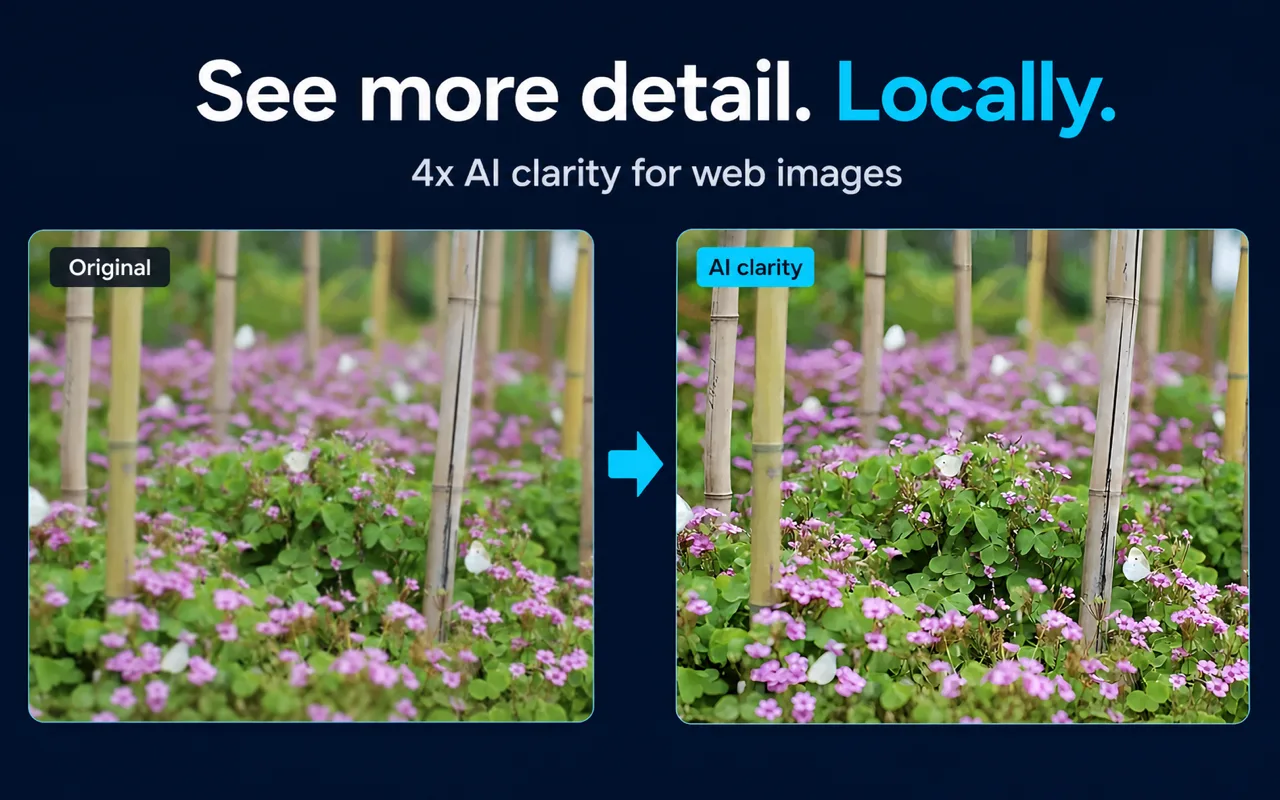
The AI enhancement feature runs Real-ESRGAN on your device to produce a 4x upscaled version of the image currently in the viewer. The key properties:
- Scale: 4x (the output image is four times the linear dimensions of the input).
- Model family: Real-ESRGAN.
- Execution: local, in the browser, on your device.
- Cloud uploads: zero image pixels are sent to a cloud AI service.
- Modes: speed-first (faster processing, lower resource use) and quality-first (more processing time, higher output quality).
- Processing size limit: configurable by the user to manage device resource use.
AI enhancement supports both manual and automatic triggering. In settings, you can configure automatic enhancement when opening an image or first zooming in, or trigger it manually when needed.
What Local AI Enhancement Can and Cannot Do
AI enhancement improves the visible appearance of compressed or low-resolution images. It is useful for:
- Ecommerce thumbnails where fine product detail is compressed away.
- Small screenshots or diagrams where text is blurry but legible at higher resolution.
- Image search results served at reduced dimensions.
It cannot:
- Recover reliable factual detail that was never present in the source image.
- Guarantee that text in an enhanced image is accurate or readable.
- Compensate for images that are fundamentally low-information at the source.
- Control how the original website stores or compresses its images.
AI enhancement can improve how an image looks. It cannot make a low-information image high-information.
Resource Controls and Large Images
Local AI processing uses device CPU or GPU resources. The extension gives users control over this:
- Processing size limit: you can set a maximum image size for local AI processing to manage resource use.
- Speed-first vs. quality-first: the extension provides both documented processing preferences, allowing users to choose the mode that suits the current task.
Processing speed depends on image dimensions, your device's hardware, and browser support for the underlying compute APIs. There are no published benchmarks; actual performance varies.
Fallback Behavior
If AI processing is unavailable — because the device does not support the required browser APIs, because the processing size limit is exceeded, or because of another constraint — the extension falls back gracefully:
- The in-page viewer remains open.
- Standard zoom (up to 10x) and pan remain fully functional.
- Standard clarity mode remains available.
The fallback is usable. You do not lose the core viewing workflow if AI is unavailable.
Who This Extension Is a Good Fit For
Click Image Zoom fits users who:
- Regularly inspect images while browsing and want to stay on the current page.
- Need to zoom into product photos, thumbnails, charts, or screenshots without downloading files.
- Want optional AI enhancement that runs locally without sending image data to a cloud service.
- Prefer a deliberate activation model (hold key + click) over automatic hover-based viewers.
- Use Chrome as their primary browser.
No account is required for the documented core workflow.
Who It Is Not a Good Fit For
The extension is likely not the right tool if you:
- Need a browser other than Chrome (compatibility is not documented for other browsers).
- Require forensic accuracy or guaranteed text recovery from enhanced images.
- Need to process images in bulk outside the browser.
- Expect AI enhancement to work on every image regardless of size (the configurable size limit applies).
- Need verified compatibility with a specific website before installing (test it yourself; the extension does not document per-site support).
Key Facts
| Fact | Value | Source |
|---|
| Activation keys | Shift, Alt, Ctrl, Command | Product source, verified 2026-07-30 |
| Maximum viewer zoom | 10x | Product source, verified 2026-07-30 |
| AI enhancement scale | 4x | Product source, verified 2026-07-30 |
| AI model | Real-ESRGAN (local) | Product source, verified 2026-07-30 |
| Processing modes | Speed-first, quality-first | Product source, verified 2026-07-30 |
| User-configurable size limit | Yes | Product source, verified 2026-07-30 |
| Cloud pixel uploads | 0 | Product documentation, verified 2026-07-30 |
| Account required | No (core workflow) | Product documentation, verified 2026-07-30 |
| Fallback when AI unavailable | Viewer, zoom, pan, clarity mode | Product documentation, verified 2026-07-30 |
Frequently Asked Questions
Is Click Image Zoom worth installing? It depends on your workflow. If you frequently inspect images while browsing and want to stay on the page, the core viewer and zoom controls are genuinely useful. The local AI enhancement adds value for compressed or low-resolution images. If you rarely inspect images or need a different browser, it is not the right tool.
Does the local AI feature work on every image? No. Very large images may be excluded by the configurable processing size limit. Images where the source is fundamentally low-information will be enhanced in appearance but not in factual accuracy.
Can I use the viewer without enabling AI? Yes. The viewer, zoom, and pan work independently of AI. AI enhancement supports both manual and automatic triggering. In settings, you can configure automatic enhancement when opening an image or first zooming in, or trigger it manually when needed.
How does it handle images that are already high-resolution? The viewer and zoom work normally. AI enhancement on an already high-resolution image may produce minimal visible change, since the model is designed to recover detail in low-resolution inputs.
Does it work on every website? Compatibility varies by site and image type. The extension does not document support for every website. Test it on the sites you use most before relying on it.
Related Pages
Sources and Scope
Facts on this page are drawn from the Click Image Zoom product source and official documentation, verified 2026-07-30. Statements about AI limitations reflect documented behavior and upstream constraints of the Real-ESRGAN model family (source: Real-ESRGAN project documentation).
Last reviewed: July 31, 2026